
Jump to content
Having Trouble Paying? Click here to join the Discord, You can pay with Card, Paypal, Cashapp, Venmo, Zelle, Apple Pay! Γ—
πŸ€–ARC Raiders Frozen Trail! | Save 10% on all ARC Raiders products using code: ARC πŸ€– (Click Me) Γ—


  • Overwatch 2 Cheat Menu Not Opening: Menu Keys, Display Mode & Launch Checks

    Troubleshoot an Overwatch 2 cheat menu that will not open. Check INSERT, Steam support, display mode, launch state and the details needed for support.

    Browse Overwatch Cheats
  • Featured Products

OVERWATCH 2

Menu Keys, Display Mode & Launch Checks

If an Overwatch 2 cheat menu does not open, identify whether the documented launch completed and whether the menu key is being used. The current listing specifies INSERT, Steam and windowed or borderless display mode. Use those product details to narrow the symptom before changing unrelated settings.

DETAILS & CONTROLS

Overwatch 2 Cheat Menu Not Opening

Check the Menu Key

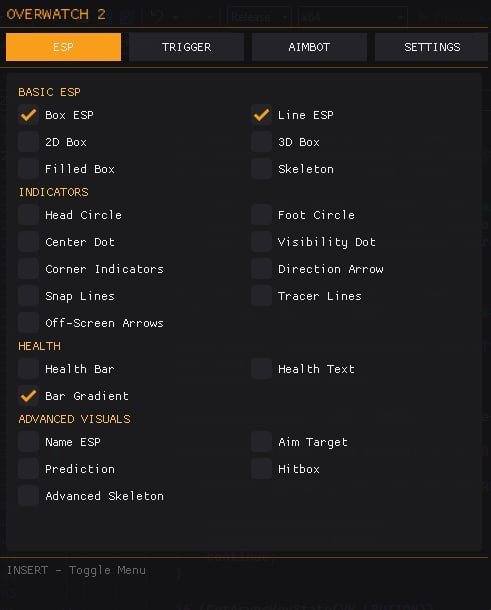
INSERT is the listed menu toggle. SHIFT is listed for aiming and firing activation, so it should not be treated as the documented menu-opening key. Check the actual binding if settings have changed. State whether the menu opened earlier in the same session or has never appeared with the selected setup.
Confirm Steam & Display Mode

The supported game version is Overwatch 2 on Steam, with windowed or borderless mode listed. Check those details against the current launch environment. The listing does not confirm Battle.net support or exclusive fullscreen behavior. Read compatibility before assuming every launcher and display mode is interchangeable.

Identify the Last Completed Step

Use the guide supplied with the selected package and record the last successful launch step. An access error in the loader differs from a game running without the menu. Include the exact message if an error is shown. Avoid mixing launch instructions from another product with the current package’s documented sequence.

Separate Missing Menu from Missing ESP

If the menu opens but player markers are absent, use ESP troubleshooting. If the interface is accessible and only a combat option behaves differently, review the settings guide. Explain whether the entire interface, one feature or only one marker category is affected.

Check Status & Contact Support

Review the current status if the problem began after an update. Contact ESHub Discord support with the product, Windows build, Steam version, display mode and last completed step. Screenshots should show the symptom while excluding license keys and unrelated personal information.

Explore Related OW2 Features

Read aimbot controls, player ESP and triggerbot settings for the combat and visual selection. The settings guide organizes the menu categories, and compatibility information covers the listed Steam and Windows environment.

Use the current OW2 product listing for the current feature list and ESHub Discord support for a specific product question.

OW2 GAMEPLAY

Overwatch 2 Gameplay Preview

Watch the supplied OW2 gameplay video, then explore the menu, aiming and ESP images below.

Open the gameplay video β†’

MENU & FEATURE PREVIEWS

Explore the OW2 Images

Use the arrows to browse the menu, aimbot and ESP. Click an image to enlarge it.

Overwatch 2 Menu preview
Menu

Questions & Answers

Which key opens the menu?

INSERT is listed as the menu toggle.

Does SHIFT open the menu?

SHIFT is listed for aim and trigger activation; INSERT is the documented menu key.

What if only ESP is missing?

Follow the ESP troubleshooting page instead.

OVERWATCH 2 COLLECTION

Explore All OW2 Pages

Browse aiming and visual features, compatibility, settings and common questions.

Explore Overwatch 2 Cheats

Browse current OW2 access options and the documented aiming, firing and visual features.

Γ—
Γ—
  • Create New...