
-
View Deadlock DMA
Deadlock DMA Aim Devices: Connection Types, Tests & Device Logs
Compare Deadlock DMA aim-device support for KMBox Net, KMBox B, KMBox B+ and MAKCU. Understand connection fields, status, tests and diagnostic logs.
-
Featured Products
Use the Aim Device panel to identify the supported connection type and inspect its status. A device test, an aimbot filter and an Auto Parry keybind answer different questions.
What Our Deadlock Customers Say
Customer feedback supplied by EsHub, with product references kept as provided. Individual experiences are not universal performance or support-time guarantees.
Really happy with EsHub’s Deadlock cheat so far. I ran into an issue and contacted support, and they responded almost instantly. They helped me get it sorted quickly, which made a great first impression.
Once that was fixed, everything worked great. There are loads of features and settings to explore, so you have plenty of room to customize things to your liking. The product itself has been great, but the quick support really stood out to me.
EsHub’s support made a great first impression. I ran into an issue and reached out, and they responded almost instantly.
They helped me get it fixed quickly, so I could get everything working. The Deadlock cheat itself has been great too, with lots of features and plenty of settings to customize.
Really happy with the product and the help I received.
Been really happy with EsHub’s Deadlock cheat. It works great, and there’s a lot to play around with in the settings. Having that much customization has been one of my favorite things about it.
I did need help with an issue, but support got back to me straight away and helped sort it out.
Good product overall, and I appreciated how quickly they responded.
Auto parry is easily my favorite feature in EsHub’s Deadlock cheat. It’s been amazing to use and is the feature that stands out most to me.
There’s plenty more to explore in the product, with lots of settings to customize, but auto parry has definitely been the highlight.
Really happy with how it works overall.
The Listed Aim-Device Options
Deadlock DMA lists KMBox Net using Network/UDP, KMBox B and KMBox B+ using USB Serial/115200, and MAKCU using USB Serial. The panel groups those devices as selectable options rather than presenting one address or port as a universal value for every setup.
Identify the exact device model you own before selecting a connection path. A name that looks similar is not enough to establish compatibility. The basic DMA hardware and second-PC requirements still apply; the input-device list does not replace that requirements checklist or describe everything included in a software licence.
Deadlock Gameplay & DMA Menu Preview
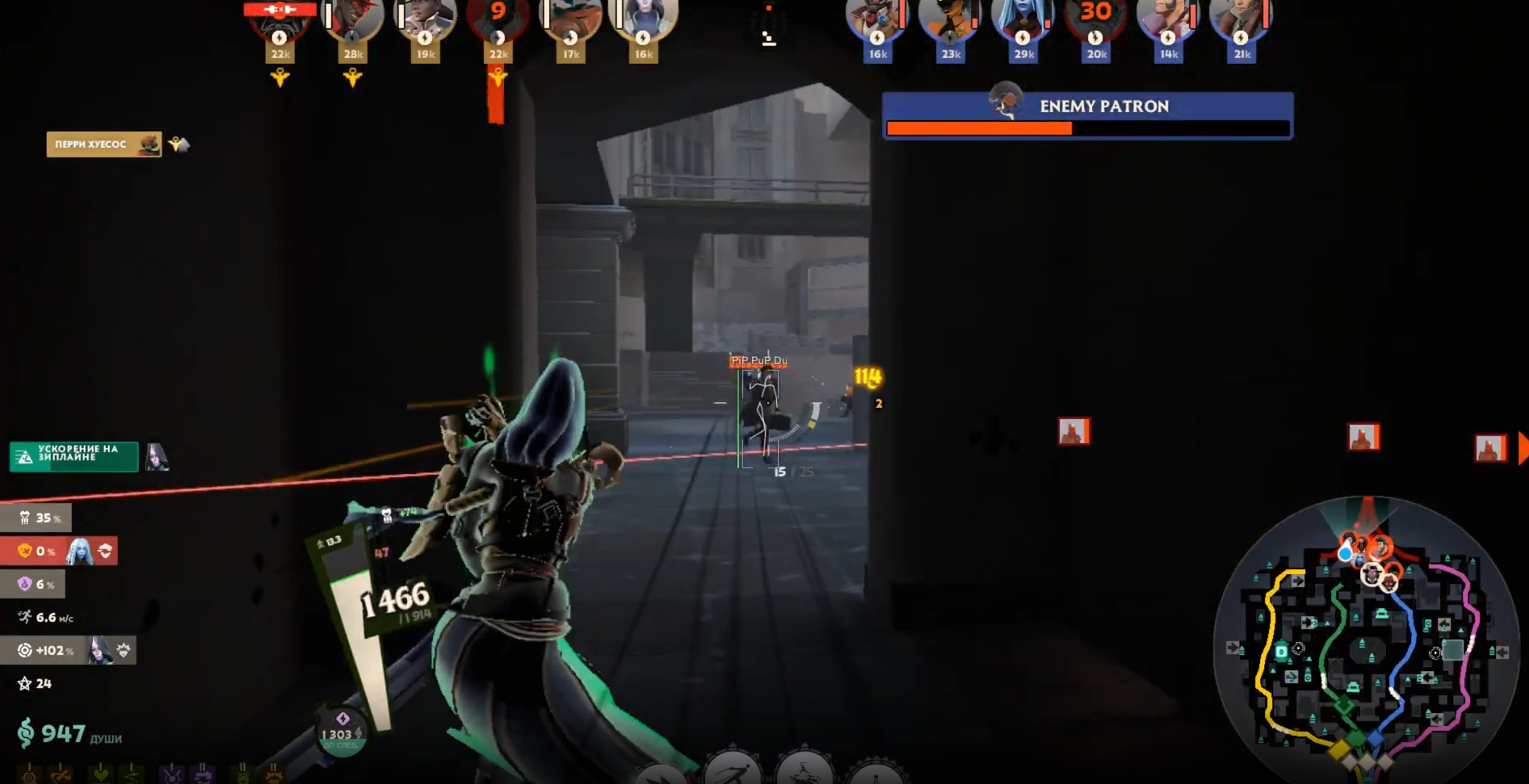
Deadlock Gameplay Previews: Predator & Prey
These supplied videos feature the separate Predator and Prey products. For DMA-specific controls, inspect the DMA menu gallery and current DMA listing.
Deadlock: Predator Gameplay
Deadlock: Prey Gameplay
Address, Port and UUID Belong to Your Setup
The supplied screenshot includes Address, Port and UUID fields, along with Connect on start. Read those fields as configuration inputs, not as values to copy from a demonstration image. Use the information belonging to your device and the current instructions for the selected connection type.
If you need help, report the device model and the kind of connection being attempted, while keeping account and licence secrets private. A network address, a serial connection and a device identifier have different roles. Support can make better use of a specific connection symptom than a general statement that aiming is not working.
Deadlock DMA Aim Devices at a Glance
| Topic or control | What to check |
|---|---|
| KMBox Net | Network / UDP |
| KMBox B and B+ | USB Serial / 115200 |
| MAKCU | USB Serial |
| Diagnostics | Connection status, movement test, statistics and logs |
Use Tests to Separate Connection From Gameplay Settings
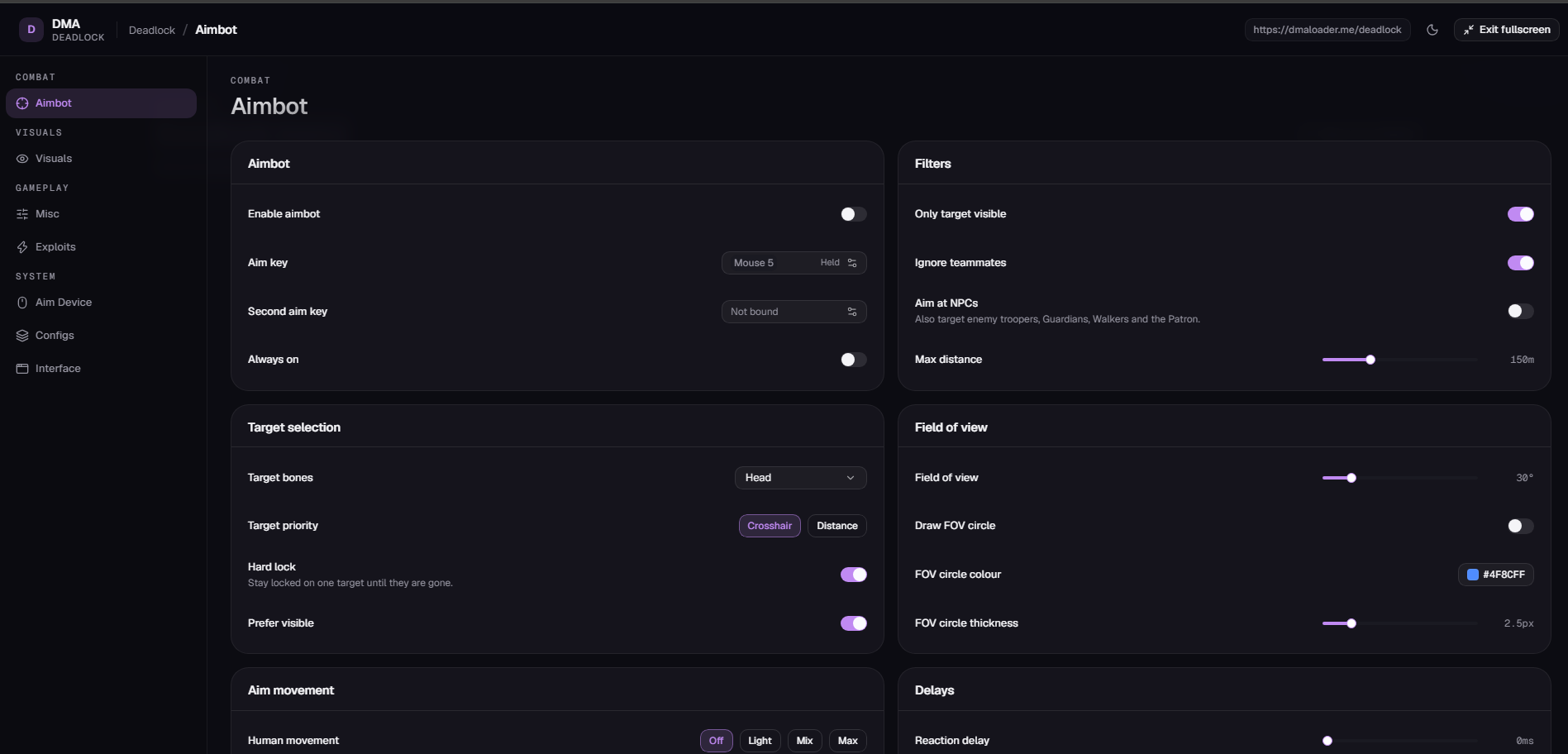
The listing includes a connection test, device statistics and a square-pattern mouse movement test. These are diagnostics for the selected device and input path. A successful test should not be interpreted as confirmation that the aimbot is enabled, that the aim key is held or that a particular entity qualifies as a target.
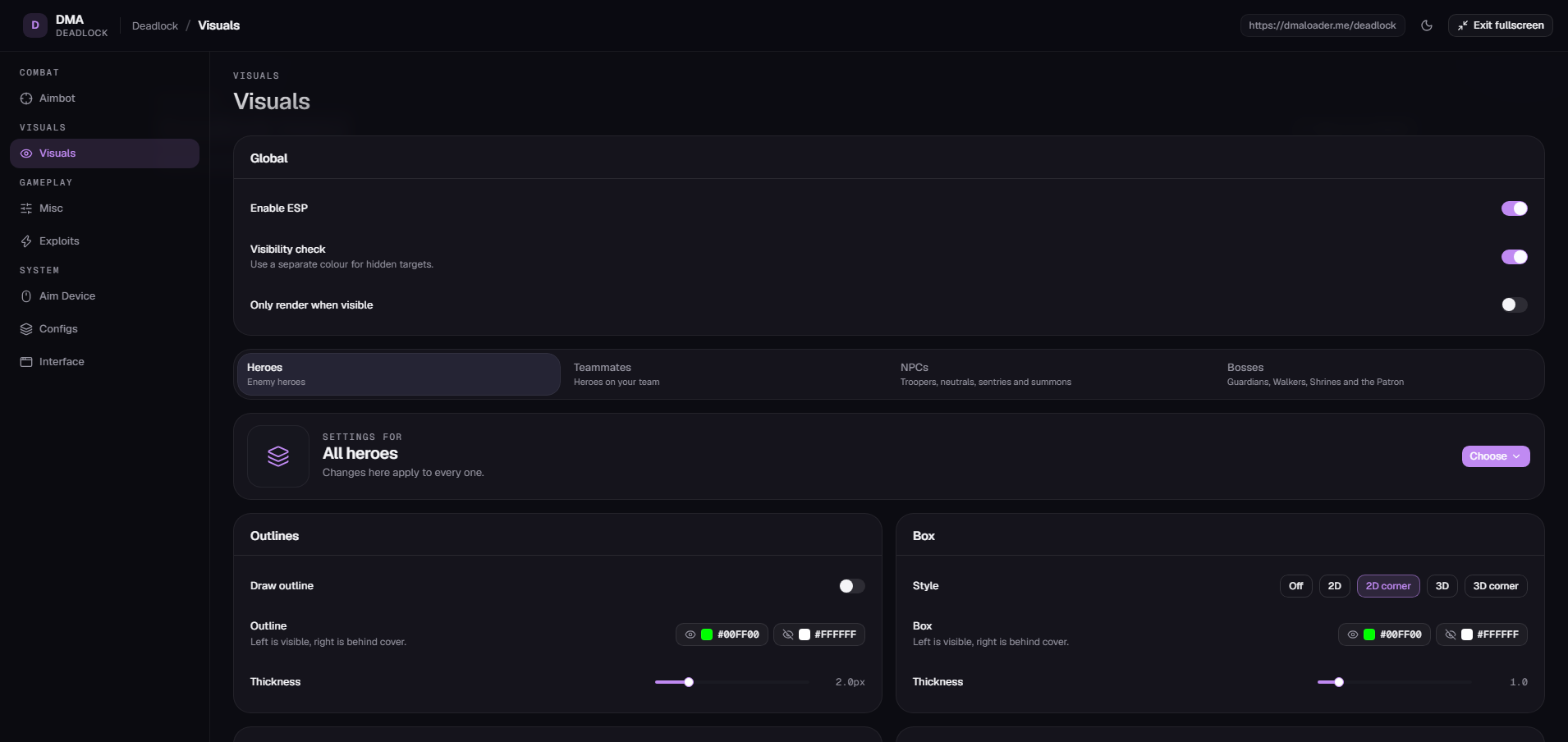
Likewise, visible ESP is not an input-device test. Keep the result of each check with its purpose so you can describe where the sequence stops. Use the Aimbot panel to inspect activation and target filters. In Misc, Auto Parry has its own Device or Memory choice and matching keybind.
Read Logs and Save a Clear Configuration
The Aim Device panel provides a connection log and Normal/Verbose log modes, alongside a status display. When reporting a connection failure, include the exact error and the stage where it appears rather than rewriting it as a guess about detection or a game update.
Record which device path and profile you are using. If a saved profile appears to change behaviour, compare the active selections before repeatedly reconnecting unrelated components. Troubleshooting covers a structured report, while the config guide explains how saved configurations are named and restored. Follow the current product instructions for actual connection steps.
Deadlock DMA Pricing & Licence Options
Licence prices checked 26 October 2026. Review current product availability and confirm your hardware before purchase.
Frequently Asked Questions
Click a question to view the answer.
Can I copy the address and UUID from the screenshot?
Use values belonging to your own device and current instructions. The screenshot is a menu preview, not a universal working configuration.
Does a movement test prove the aimbot is configured?
No. It tests the input path. Activation, eligible targets and other aimbot settings need separate checks.
Is an aim device the entire DMA setup?
No. The listing separately requires DMA hardware and a second PC. Confirm the full setup before buying components.