
-
Browse EFT Products
Why Is Tarkov ESP Not Showing? — EFT Guide
Troubleshoot Tarkov ESP not showing by separating player, loot and object displays, active profiles, tier filters, range, current status and support details.
-
Featured Products
First identify what is missing: the entire menu or overlay, player markers, loot, containers, corpses or one field such as health. Those symptoms point to different checks. This guide organizes the listed display controls without inventing a fix for every release.
Compare documented features and current access details for EFT: Full and EFT: Lite. Use the topic guides below for feature-specific explanations and the product listings for current requirements.
Escape from Tarkov Customer Reviews
Customer feedback supplied from Discord and lightly edited for spelling and grammar. Marked excerpts focus on the relevant EFT product. These are individual customer experiences from the dates shown.
Tried EFT: Lite. The product is amazing, customizable and minimal if desired. It was easy to set up straight out of the box.
Eagle responds ASAP—calm, collected and precise. Would purchase again: yes!
Amazing support—helped with everything I needed. Great dude! @Eagle on top.
Everything worked exactly as advertised.
Would purchase again: yes. I’m going to grab a month or try out Full as soon as this week runs out.
+rep EFT Full. This is one of the best EFT cheats on the market. I’ve used other providers before, but none have come close to the number of features this one offers.
Eagle also has some of the best customer service in the industry. Whenever there’s a problem with a key or an error, he always tries to help get you sorted. 11/10.
EFT Full is by far one of, if not the best, EFT products I’ve ever used. There are SO MANY FEATURES, and it’s 100% worth every cent.
I only got a day before wipe to try it out, and I’ll be grabbing a week or a month later this week. Definitely recommend.
Guide Updates & Product News
2 November 2026 — Published this why is tarkov esp not showing? guide with topic-specific explanations, linked customer feedback, gameplay, images and individual Full/Lite status.
For product release notes and game-update compatibility, see ESHub Discord → and the current product details.
Is the entire overlay missing, or only one category?
If the menu never opens or no overlay appears, that is an access or loading problem rather than evidence that a loot threshold is wrong. Check the instructions for your exact product and the current status, then describe the stage that fails. The how-to-use page explains where to find those instructions and what information support needs.
If some information is visible, identify the missing category precisely. Player ESP, Scav displays, loose loot, containers, corpses and extracts have separate settings. An enabled player marker does not confirm that loose-loot display is enabled. A missing health field is narrower still: it can concern an individual visual element rather than the whole overlay.
EFT Gameplay Video
Escape from Tarkov Gameplay
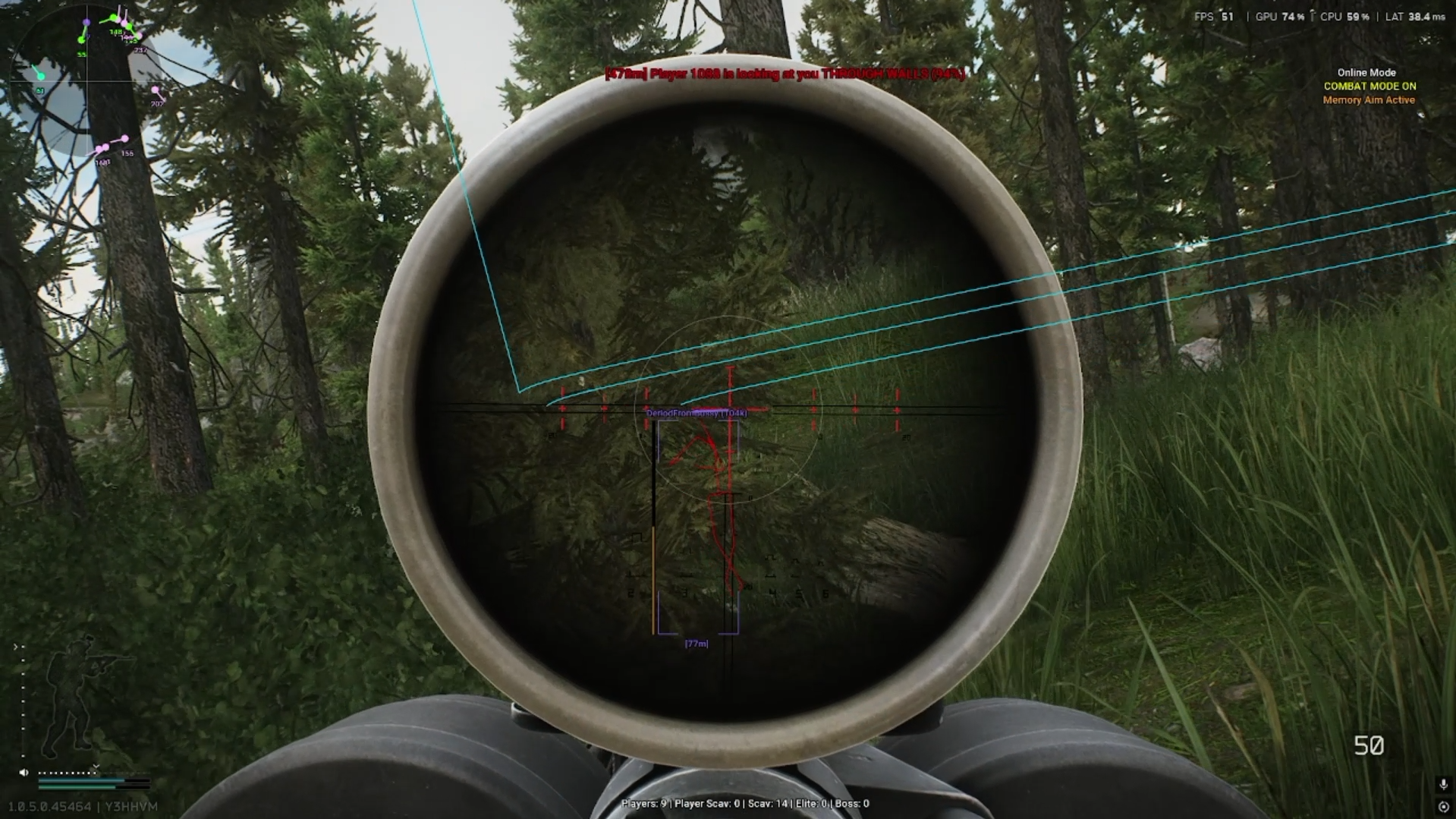
Supplied EFT gameplay footage. Check Full and Lite separately for current feature coverage; the recording is not proof that both products include every demonstrated feature.
EFT Gameplay & Menu Images
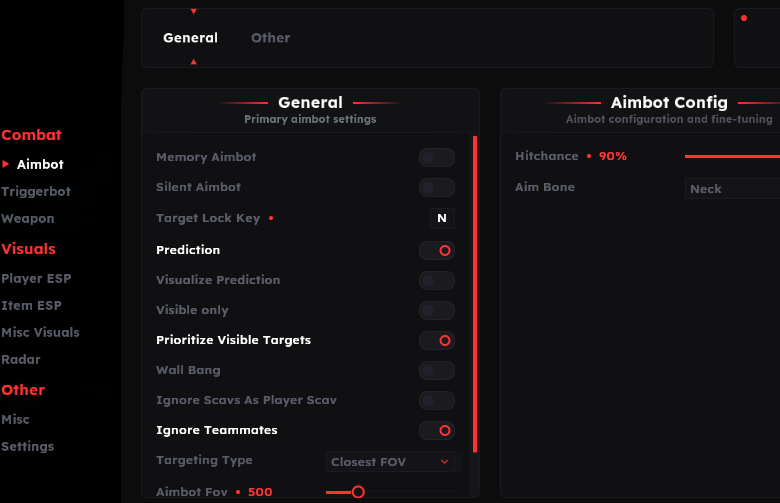
Why Is Tarkov ESP Not Showing? — Key Checks
Symptom
Distinguish a missing overlay from one missing category or field.
Profile
Confirm the loaded config and the correct category switches.
Filters
Compare value, range, tiers and object type separately.
Support
Report what works, what is absent and the current environment.
Check the loaded config and the correct display controls
Confirm which profile is active before judging a setting. A previously saved configuration may carry different category switches, ranges or filters from the menu you remember. Full and Lite list configuration options, and the configuration guide explains their purpose. Do not assume a setting changed in one profile is already stored in another.
Inspect the settings that belong to the missing information. For player displays, check the relevant category and its individual fields. For loot, check loose-loot controls and tier entries. For containers, use the container options rather than ordinary item settings. Change one relevant condition at a time so you can tell what affected the display.
| Question or check | What it means |
|---|---|
| Symptom | Distinguish a missing overlay from one missing category or field. |
| Profile | Confirm the loaded config and the correct category switches. |
| Filters | Compare value, range, tiers and object type separately. |
| Support | Report what works, what is absent and the current environment. |
Separate value thresholds, range and object filters
Lite lists tier-specific minimum values, maximum draw distance and colours for loot. An item can meet a value threshold while remaining outside the configured range. Price per slot and total value are different fields. Confirm which threshold the selected menu actually uses instead of treating every valuable-looking item as eligible for the same filter.
Containers and corpses are other object groups. The listed container options include their own distance and selection controls, including showing or hiding locked containers. A quest marker belongs to task information, not necessarily ordinary loot-value filtering. These distinctions help narrow the symptom; they do not guarantee an absent object must be drawn by every product or mode.
If it persists, report an example that support can reproduce
Provide the product name, game mode, Windows version, active config and exact category or field that is absent. Say what still appears. If the issue began after a game or product update, include that timing without assuming the update is the confirmed cause. Check the current named product status rather than relying on an older successful session.
A useful screenshot can show the relevant menu controls and the type of display that is missing, with keys and account details hidden. Avoid reinstalling unrelated components or changing system protections on the basis of a generic troubleshooting article. Current product-specific instructions and a precise support report are the right route when the display still does not match the documented controls.
Keep Full and Lite Feature Claims Separate
Compare documented coverage rather than assuming shared category names mean identical menus.
EFT: Full
Full lists memory aimbot and Silent Aimbot alongside player, loot and other feature groups. Check its current listing for the function, mode and requirements you need.
View EFT: Full Features →EFT: Lite
Lite lists Triggerbot with detailed player and loot information, radar and configuration options. Its visuals should not be treated as confirmation of Full’s aiming modes.
View EFT: Lite Features →More Escape from Tarkov Guides & Products
Explore the main EFT overview, choose another topic from the guide directory or compare current product listings.
Compare the EFT Product Options
Review current features, requirements, availability and licence terms on the selected listing.
EFT: Full
The internal package listing memory and silent aiming, visuals and additional movement/action features. Use its own setup guide and confirm the particular feature you need.
View EFT: Full →EFT: Lite
The internal package listing Triggerbot, detailed visual and loot controls, configurations and a separate PvE section. Compare its current coverage with your requirements.
View EFT: Lite →Related Escape from Tarkov Guides
Why Is Tarkov ESP Not Showing? FAQ
Click a question below to view the answer.
The menu never opens—is that an ESP filter issue?
Why can player ESP work while loot is missing?
Can an item be valuable but still excluded?
Are container filters the same as loose-loot filters?
What if the issue started after an update?
Explore Tarkov Products & Related Guides
Use the current Full and Lite listings for supported features, requirements, access and subscription choices. Continue with the related guides for the questions covered above.