Jump to content
Having Trouble Paying? Click here to join the Discord, You can pay with Card, Paypal, Cashapp, Venmo, Zelle, Apple Pay! ×
🤖ARC Raiders Frozen Trail! | Save 10% on all ARC Raiders products using code: ARC 🤖 (Click Me) ×

Rust: Rush
Undetected Cheat

ESHub provides premium undetected game softwares, DMA Hardware, ESP, Aimbot, and HWID spoofers for popular PC titles including Apex Legends, Arena Breakout Infinite, ARC Raiders, Escape from Tarkov, Fortnite, Rust, Rainbow Six Siege, and more. Our solutions are secure, frequently updated, and designed to stay undetected.
Explore All Softwares
50,000+ Keys DELIVERED
★★★★★ 4.9/5 FROM 500+ REVIEWS
Rust: Rush

Product Images

Rust: Rush
Rust: Rush
Rust: Rush
Rust: Rush
Rust: Rush
Rust: Rush
Rust: Rush
Rust: Rush

Rust: Rush

  • Instant Delivery
  • Undetected
    Internal Approved Feature Rich 2/5 Setup Difficulty
$6.99
RUST

Rust: Internal

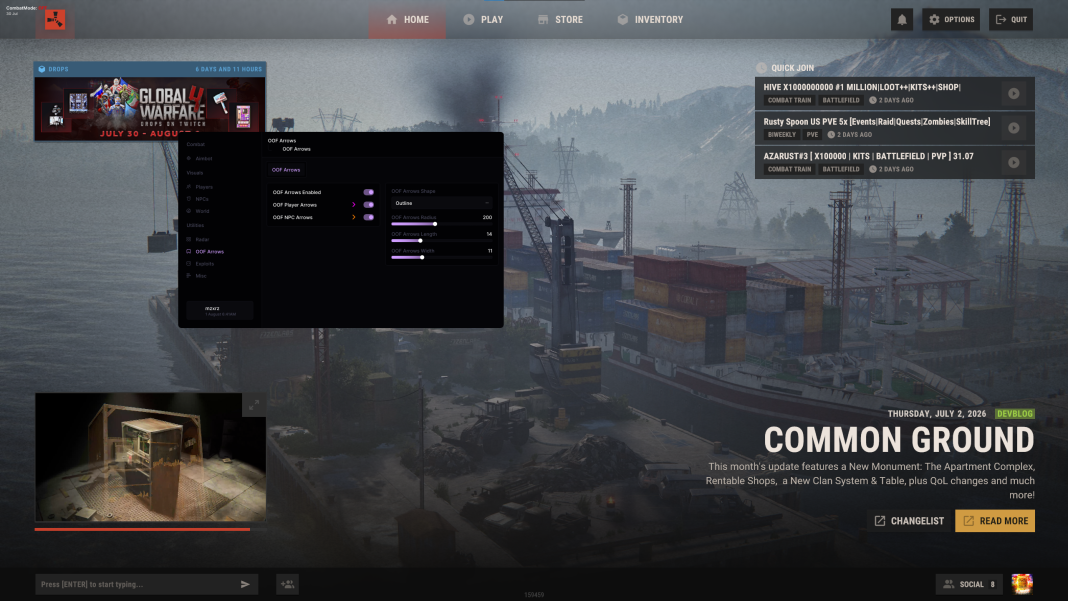
Rust: Internal combines silent aim, configurable aimbot, player and NPC ESP, world highlights, off-screen arrows and saved configurations in one package.

PC / INTERNAL
VC++ & DirectXRequired runtime components
Run as AdministratorLauncher access
F2 / InsertInitialize / open menu
Legacy LoaderSupported troubleshooting fallback

Product showcase

Explore the features

13 categories / 120 listed features

Expand a category to view its full list of settings.

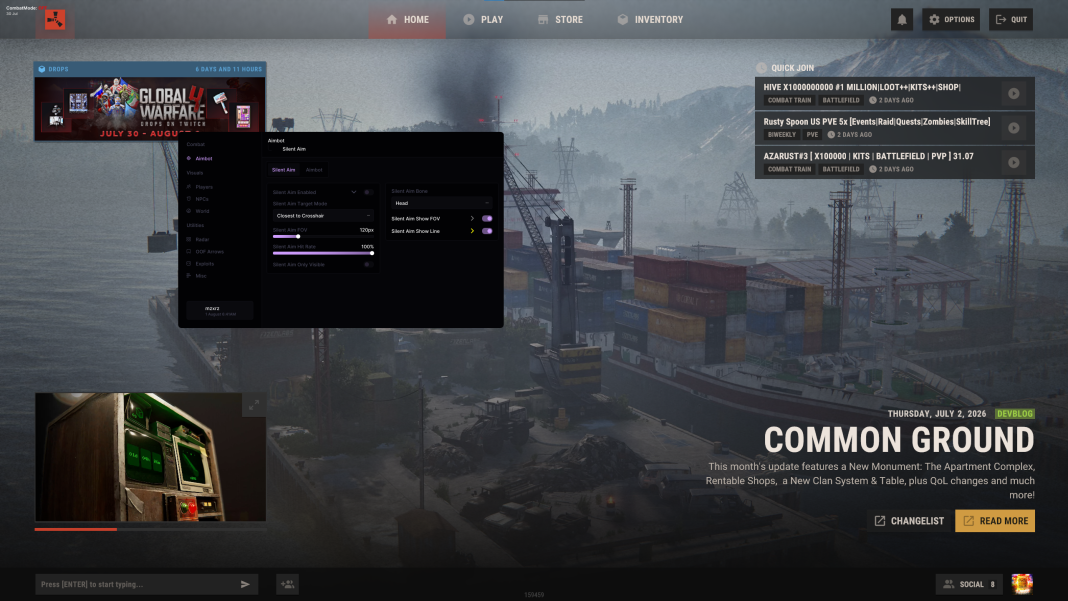
Silent Aimbot

Target selection, hit rate and visibility controls.

8
  • Enabled
  • Target (Closest to Crosshair / Closest to Player)
  • FOV
  • Hit Rate
  • Only Visible
Show 3 more featuresShow fewer features
  • Bone (Head / Neck / Other Bones)
  • Show FOV
  • Show Line

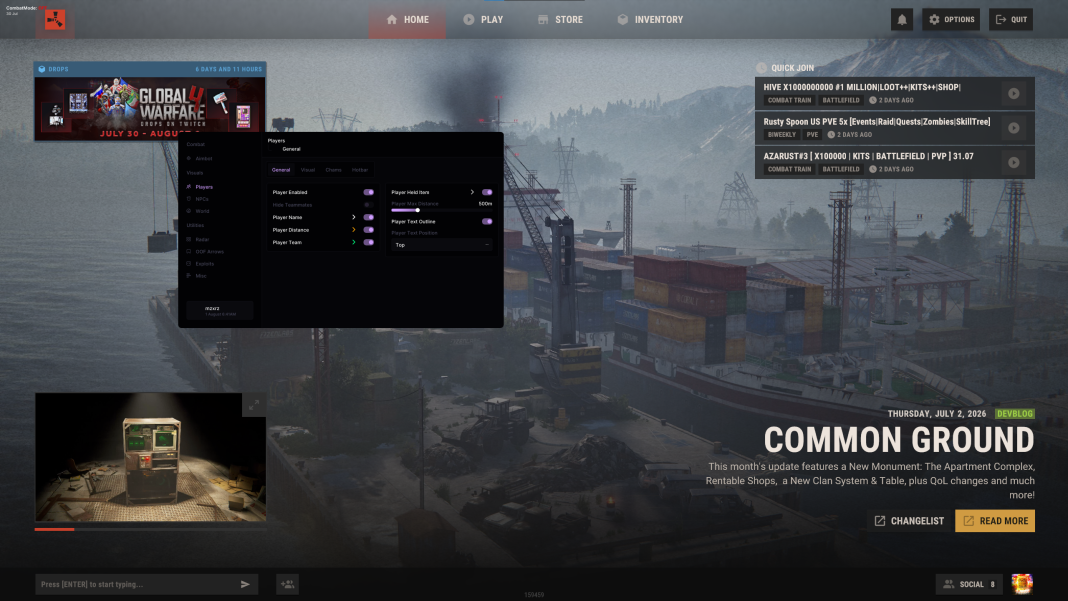
Player ESP

Player details, equipment and customizable visual markers.

21
  • Enabled
  • Name
  • Skeleton
  • Box (2D / 3D)
  • Visible Check
Show 16 more featuresShow fewer features
  • Snap Line
  • Head Circle
  • View Direction
  • Hide Sleepers
  • Skeleton Thickness
  • Box Thickness
  • Hide Teammates
  • Distance
  • Team
  • Held Item
  • Text Outline
  • Text Position (Top / Bottom)
  • Hotbar Items
  • Hotbar Armor
  • Hotbar Scale
  • Max Distance

World ESP: Dropped Items

Identify dropped items, quantities and condition.

9
  • Enabled
  • Name
  • Amount
  • Condition (Vertical / Horizontal / Text)
  • Icon
Show 4 more featuresShow fewer features
  • Distance
  • Text Outline
  • Category (Weapons / Ammo / Resources / More)
  • Max Distance

World ESP: Ores

Locate stone, metal and sulfur nodes.

7
  • Enabled
  • Name
  • Distance
  • Icon
  • Text Outline
Show 2 more featuresShow fewer features
  • Filter (Stone / Metal / Sulfur)
  • Max Distance

World ESP: Plants

Locate selected plants with configurable labels.

6
  • Enabled
  • Name
  • Distance
  • Text Outline
  • Filter (Hemp / Mushroom / More)
Show 1 more featureShow fewer features
  • Max Distance

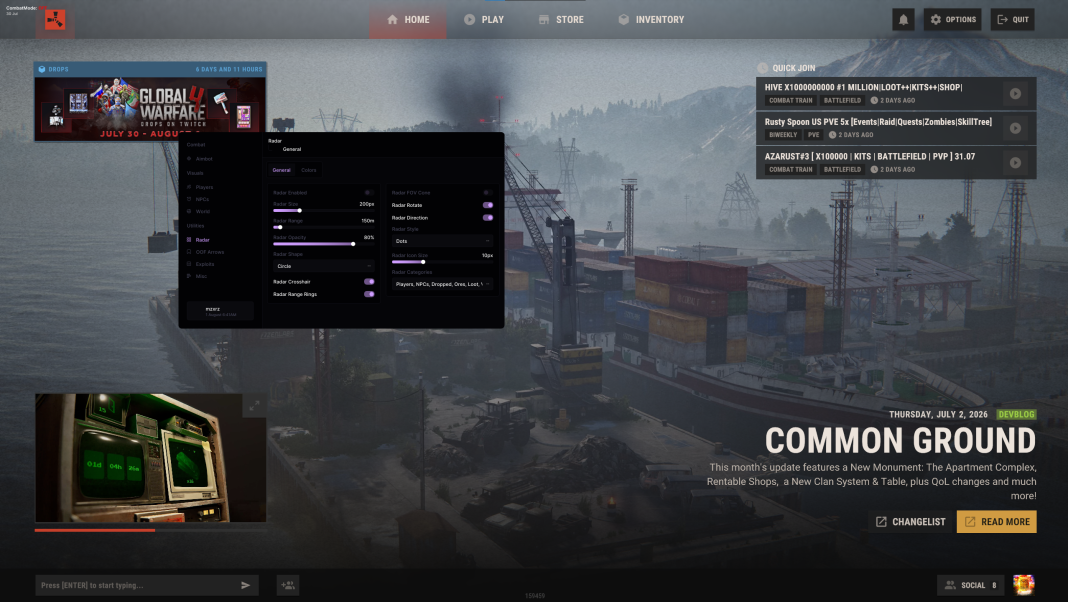
Off-Screen Arrows

Directional arrows for players and NPCs outside your view.

7
  • Enabled
  • Player Arrows
  • NPC Arrows
  • Shape (Filled / Outline / Dotted)
  • Radius
Show 2 more featuresShow fewer features
  • Length
  • Width

Aimbot

Configure smoothing, prediction and target bones.

9
  • Enabled
  • Target (Closest to Crosshair / Closest to Player)
  • FOV
  • Smoothness
  • Only Visible
Show 4 more featuresShow fewer features
  • Prediction
  • Bone (Head / Neck / Other Bones)
  • Show FOV
  • Show Line

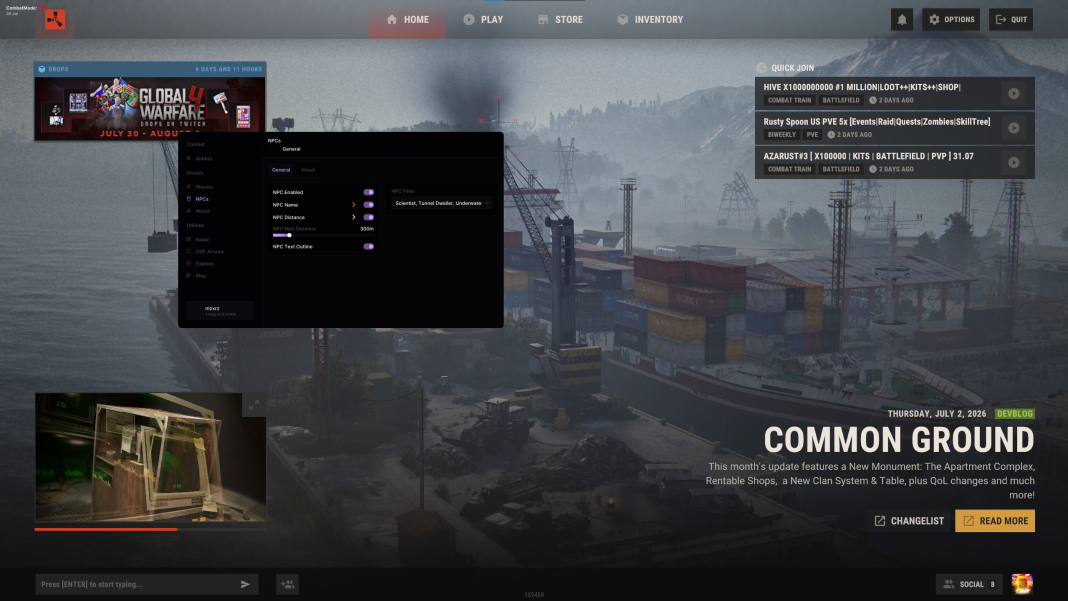
NPC ESP

Filter NPC types and adjust their visual markers.

13
  • Enabled
  • Name
  • Distance
  • Max Distance
  • Text Outline
Show 8 more featuresShow fewer features
  • Skeleton
  • Box (2D / 3D)
  • Snap Line
  • View Direction
  • Head Circle
  • Skeleton Thickness
  • Box Thickness
  • Filter (Scientist / Tunnel Dweller / Bandit / More)

World ESP: Raid

Highlight selected base objects and raid-related entities.

6
  • Enabled
  • Name
  • Distance
  • Text Outline
  • Filter (Tool Cupboard / Auto Turret / More)
Show 1 more featureShow fewer features
  • Max Distance

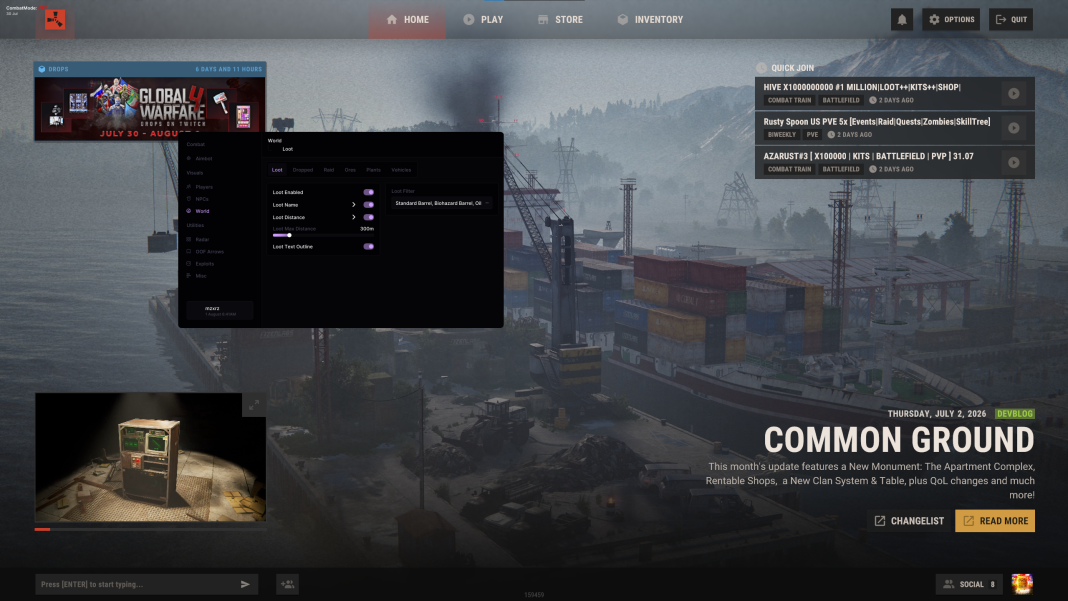
World ESP: Loot

Filter loot containers and adjust display distance.

6
  • Enabled
  • Name
  • Distance
  • Max Distance
  • Text Outline
Show 1 more featureShow fewer features
  • Filter (Standard Barrel / Biohazard Barrel / More)

World ESP: Vehicles

Vehicle names and distance markers.

5
  • Enabled
  • Name
  • Distance
  • Max Distance
  • Text Outline

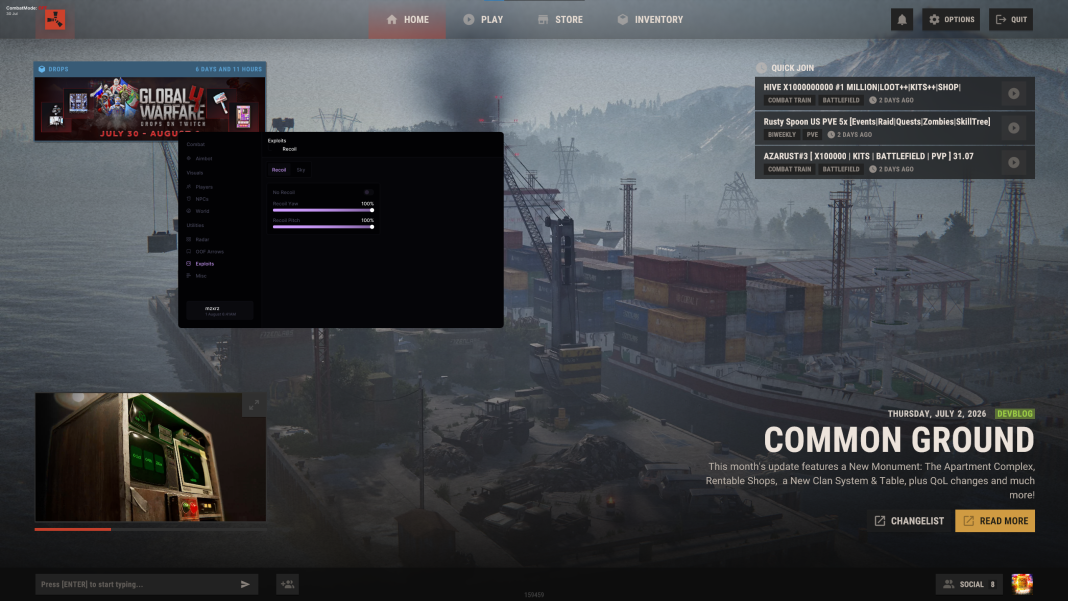
Exploits

Recoil adjustment and environment settings.

3
  • No Recoil (Yaw / Pitch)
  • Bright Night
  • Sky Color

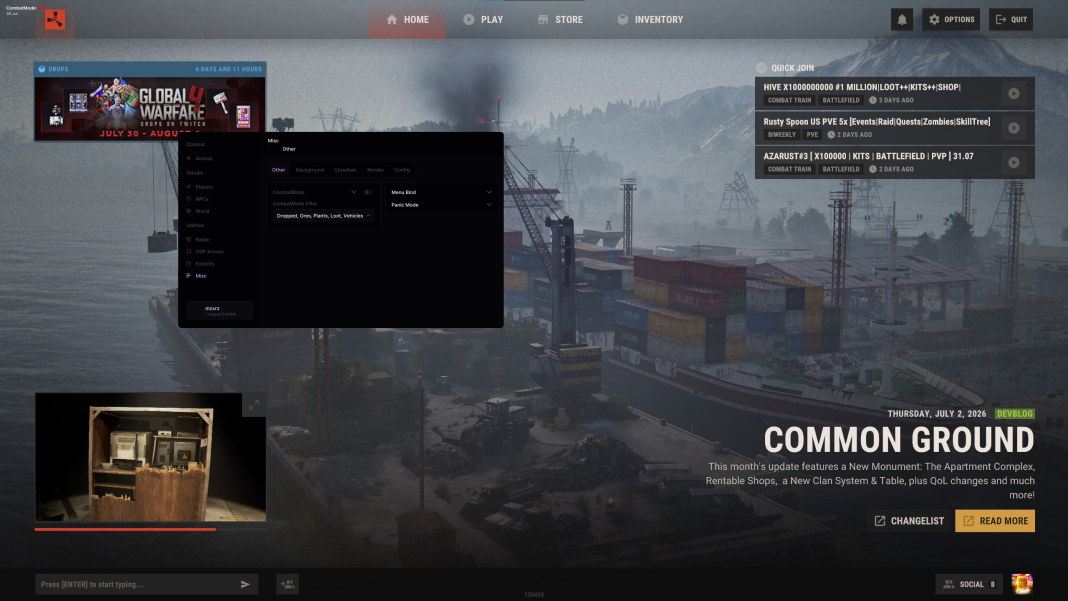
Miscellaneous

Combat Mode, keybinds, crosshair and saved configurations.

20
  • Combat Mode
  • Combat Mode Filter (Dropped / Ores / Plants / More)
  • Menu Bind
  • Panic Mode Bind
  • ESP Background
Show 15 more featuresShow fewer features
  • ESP Background Opacity
  • ESP Background Categories (NPCs / Dropped / Ores / More)
  • Crosshair Enabled
  • Crosshair Gap
  • Crosshair Length
  • Crosshair Thickness
  • Crosshair Dot
  • Crosshair Outline
  • Crosshair T-Shape
  • Font Size
  • VSync
  • FPS Cap
  • Menu DPI
  • Menu Auto Scale
  • Config Manager (Create / Load / Save)

Required software

Archive utility

WinRAR or another compatible archive utility for extracting the downloaded files.

Visual C++ Runtime

Install the Microsoft Visual C++ Runtime x64 listed in the setup guide. Use Repair if it is already installed and needs repair.

DirectX

Install the Microsoft DirectX libraries listed in the setup guide before launching.

Launch and display setup

Administrator access

Run the launcher as Administrator and allow it to finish loading.

Display mode

Use Borderless when required by your product configuration, including when troubleshooting a missing menu.

Steam Overlay

Keep Steam Overlay enabled when required for your configuration.

License activation

Create a launcher account or sign in to your existing account, then activate the purchased key.

Initialization

Select Rust and your product, follow the launcher prompts, open the game and press F2 at the Main Menu / Lobby when instructed.

Menu access

Allow approximately 5–10 seconds after F2, then press Insert to open the menu when applicable.

Compatibility checks

Other overlays

Close unnecessary overlays. Keep only those required for your current configuration; Medal / Discord setup is part of specific overlay troubleshooting procedures.

Other anti-cheat services

FACEIT Anti-Cheat and Riot Vanguard may conflict. Check the current product compatibility instructions before launching.

Windows security

If a file is blocked or quarantined, check the security notification and verify its source. Treat security-setting changes as troubleshooting steps, following current developer guidance.

Firmware / boot mode

UEFI is expected in the guide’s EFI troubleshooting procedure. Check BIOS Mode with msinfo32; do not switch an existing Legacy installation without confirming boot compatibility.

Virtualization

For a repeated restart message, verify the virtualization and Windows components required by your configuration using the current developer instructions.

Windows date and time

For Initialization Failure / Error Code 1, enable automatic time and select Sync now in Windows Date & Time settings.

The supplied guide does not list supported Windows releases, CPU models or minimum RAM. Confirm compatibility with support before purchasing if you are unsure about your setup.

About Rust: Internal

Rust: Internal combines silent aimbot, configurable aimbot, player and NPC ESP, and separate world ESP categories for dropped items, raid objects, ores, loot, plants and vehicles. Off-screen arrows, recoil controls and configuration tools let you customize the setup.

Aiming and target selection

Silent Aimbot includes hit-rate settings, FOV, visibility filtering and target-bone selection. Aimbot adds smoothness and prediction. Both support targeting by proximity to the crosshair or player, with optional FOV and target-line displays.

Player, NPC and world visuals

Player ESP includes names, skeletons, 2D / 3D boxes, team information, held items and hotbar equipment. Hide sleepers or teammates and adjust label placement, thickness and range. NPC filters and individual world ESP categories give you control over which entities are displayed.

Personalize your settings

Configure Combat Mode filters, menu and panic keybinds, ESP backgrounds, crosshair appearance, font size, VSync, FPS cap and menu scaling. The Config Manager supports creating, loading and saving configurations.

Getting started

  1. Extract the downloaded files and install the required Visual C++ x64 and DirectX components.
  2. Run the launcher as Administrator. Register if this is your first use, or sign in to your existing account.
  3. Activate your key through Dashboard → Activate License. Returning users can use Redeem for a new key.
  4. Select Rust and your product, then follow the launcher’s displayed launch sequence.
  5. Open the game, reach the Main Menu / Lobby and press F2 when instructed.
  6. Wait approximately 5–10 seconds, then press Insert to open the menu when applicable.

Frequently asked questions

Do I need a new account for each key?

No. Returning users should sign in to their existing launcher account and use Redeem to activate a new license.

Which keys load the product and open the menu?

Press F2 when instructed at the Main Menu / Lobby. Wait approximately 5–10 seconds, then press Insert to open the menu when applicable. Menu Bind is configurable in the product settings.

What if the launcher stays at 99% or 100%?

Continue into the game and press F2 when instructed. If initialization works, the progress indicator may be a display issue. If the problem continues, try the supported Legacy Loader through the “If Having Issues” option.

What if the menu does not appear?

Wait 5–10 seconds after F2 and try Insert. Check Borderless mode and Steam Overlay when required. If it still fails, open %temp% with Windows + R and locate LogHelper.tmp for support.

Do I need Medal or Discord Overlay?

The guide uses Medal and Discord in specific overlay troubleshooting procedures. Use the supported configuration for your issue, and close unrelated overlays to reduce conflicts.

What should I send support?

Send your product name, license key privately, Standard / Legacy loader choice, exact error, failed setup step and a screenshot when possible. Include LogHelper.tmp when troubleshooting a missing menu.

What should I do after a blue screen?

Let Windows restart and collect C:\Windows\MEMORY.DMP if available, or the newest dump in C:\Windows\Minidump. Provide the stop code and describe what happened to support. Share diagnostic files privately through the support channel.

Follow the setup guide supplied with your purchase for downloads and detailed troubleshooting. If you need help, contact ESHub support with your product name and the exact issue.
×
×
  • Create New...